Search, Metadata & Tags
1. What It Is
SynergyOS gives you powerful tools to find, organize, and filter information across your entire workspace.
-
The Search app lets you locate any item - file, note, task, etc. - using full-text queries, metadata filters, Boolean logic, and structured fields.
-
Tags and metadata let you classify content beyond folders, enabling smarter filters, saved views, and context-aware results.
Together, they let you access the right information instantly — no matter where it lives.
2. Why It Matters
Folders help you group related work. But modern collaboration needs more flexible ways to classify and retrieve content — especially when data lives in shared spaces.
SynergyOS solves this with:
- ✅ Precision search – Use filters, Boolean logic, and metadata together to find anything
- ✅ Cross-cutting structure – Organize work by project, status, or client using tags and fields
- ✅ Smarter filters – Narrow results by custom fields, dates, tags, or assignees
- ✅ Search across everything – Files, emails, notes, tasks, and custom metadata
- ✅ No duplication – One item, many views — by folder, by tag, by field
3. How to Use It
🔎 Search App
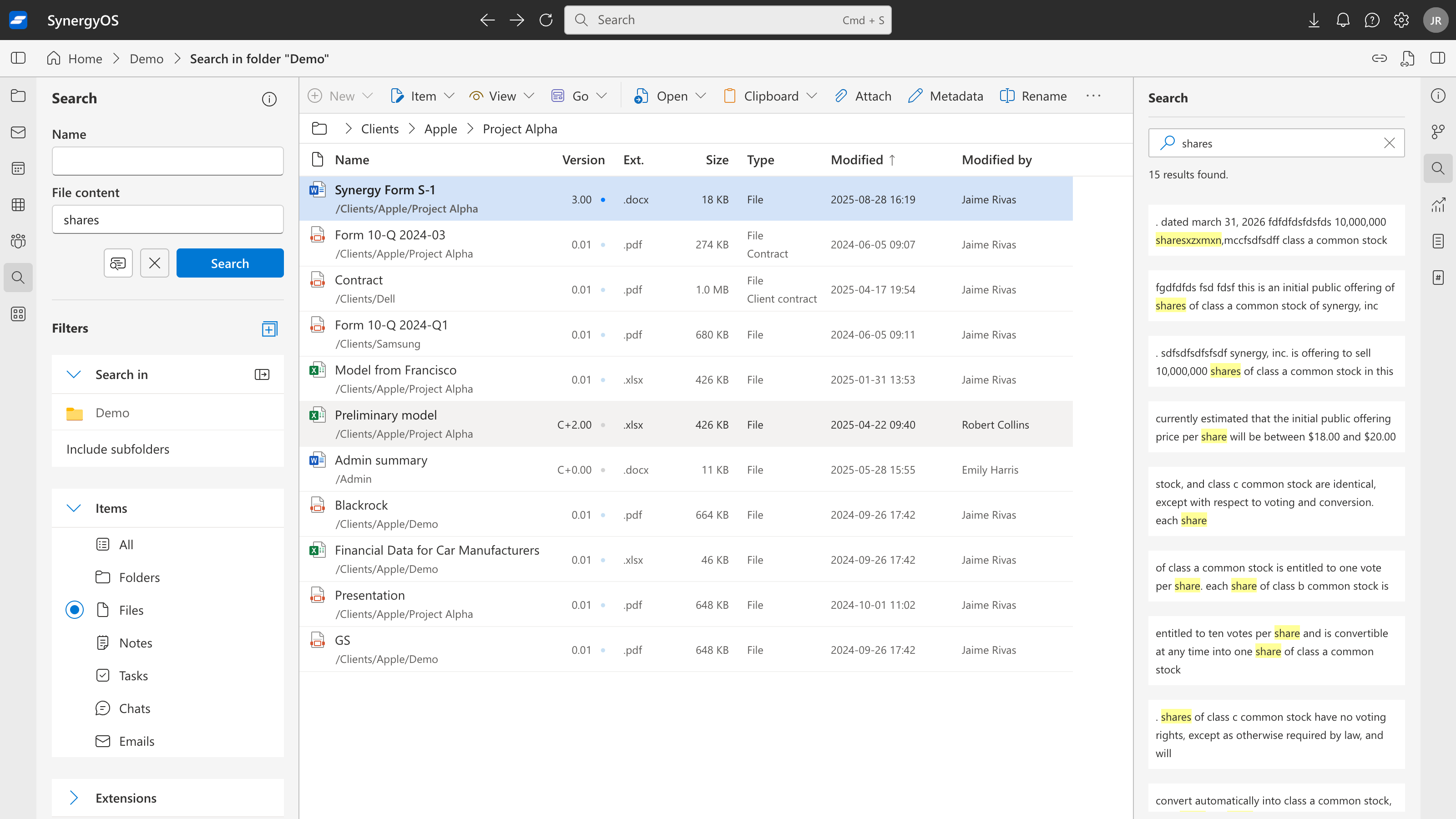
The Search app combines full-text search with structured filters and metadata-aware results. It supports exact phrases, Boolean operators, and preview of results.
Query Basics
- Quick Search Bar – Located at the top of every screen for fast lookup
- Full Search App – A dedicated app with full filtering and sorting
- Default Behavior – Uses AND logic and word stemming (e.g. ski matches skis)
Boolean Operators
| Syntax | Example | Meaning |
|---|---|---|
AND (default) | John Smith | Finds items with both words |
| "Exact Match" | "John Smith" | Finds the exact phrase |
OR | John OR Smith | Finds items with either word |
NOT | John NOT Smith | Excludes items with Smith |
Using Filters
The Search Navigation Pane allows advanced filtering:
- Folders – Search within specific folder or nested folders
- Item Types – Notes, files, tasks, etc.
- Authors / Assignees – Created by or assigned to
- Tags – Filter or exclude by tags
- Color Tags – Visual category filters
- Status – Filter by status (e.g. "completed", "in progress")
- Priority – Task or issue urgency
- Dates – Created, modified, or effective
- Custom Metadata – Use your company’s fields (e.g.
Project ID,Client,Contract Type)
Results
- Sortable List – Includes item name, location, type, and metadata
- Highlighted Terms – Matching keywords shown in context
- Preview Pane – Inline preview before opening items
- Saved Searches – Save any query as a reusable Smart View
🏷️ Tags
Tags are flexible labels you assign to items or folders.
- Use multiple tags per item
- Tags are defined by your organization
- Apply to folders or items (files, notes, emails, etc.)
Items don’t inherit folder tags, but search can combine them.
For example, find notes inside folders taggedClient: ACME Inc.
🧾 Metadata Fields
Metadata fields are structured values like status, owner, or review date. They're defined by your organization.
Examples:
Status: Draft / Final / SignedClient: Acme Inc.Owner: Maria LopezReview Date: 2024-07-15
Admins can create fields of type:
Text, dropdown, number, date, boolean, etc.
You can:
- Filter by field in Search
- Sort items by metadata
- Define item types (e.g. contracts, invoices)
📁 Folder vs. Item Metadata
| Type | Applies To | Used For |
|---|---|---|
| Folder metadata/tags | The folder itself | Contextual filtering (e.g. project folders, teams) |
| Item metadata/tags | Files, notes, etc. | Granular classification and filtering |
Example:
Tag/Clients/Acme/asclientand tag a file ascontract.
You can search for all contracts inside client folders — even though tags are separate.
🛠️ Applying Tags and Metadata
To a Folder or Item
- Open the Details Pane on the right
- Go to the Info tab
- Add tags or metadata fields directly
- Changes save automatically
Creating Metadata Fields (Admins only)
- Go to Admin Center → Metadata
- Define the field:
- Name + type (text, dropdown, date, etc.)
- Applies to: folders, files, tasks, etc.
- Save — the field becomes available to all users
4. FAQ
Q: What search operators are supported?
A: AND (default), OR, NOT, and quotes for exact phrases.
Q: How are matching terms shown in search results?
A: Matching terms are highlighted in previews and document content where supported.
Q: Can I use filters and tags in the same search?
A: Yes. You can combine metadata fields, tags, dates, and full-text search all in one query.
Q: Do tags on folders apply to the items inside?
A: Not directly, but search can include items inside folders with matching tags.
Q: Can I apply tags or metadata to multiple items at once?
A: Yes. Use multi-select, then apply tags or edit fields from the Details Pane.
Q: Can I use metadata to define types like "contract" or "invoice"?
A: Yes. You can assign a field for type and use Collections to group and view them.